Wednesday, 16 March 2011

Internet Explorer Part 3

In part 1 of this series we looked at the very top section of Internet Explorer, in ths part we will give an overview of the what is under that top area.

This area is known as the browser window, all of the common browsers have them, this is your "window" into the Internet.


Here we have highlighted the browser window area in red.
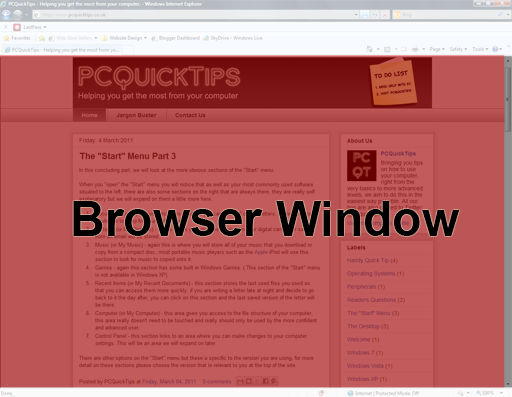

Now we will look at the lower area of the browser, this gives a small about of information about the site you are visiting.

The image below shows the left hand side of the bottom bar, this basically tells you when the site you are visiting has loaded, sometimes this can also display an error, if the site has loaded incorrectly.


The image below show the right hand side of the bar, this side shows a little more information.


As you can see here the bar is showing a symbol that looks like an eye with a red circle and a line through it, if you click on this, Internet Explorer will tell you if anything has been blocked to protect your computer and your privacy.
If you double click on the next icon along that reads Internet you will see that this is a shortcut to your privacy settings.
The next icon looks like a little lock symbol, if you move your mouse over this, a small amount of text will pop up and tell you what Internet Explorer is blocking on this site, this could be annoying adverts which pop up from time to time.
The next icon along is the zoom option, if you click on this a smal window will pop up and ask you which size you would prefer the screen to be viewed, this especially good for people who have poor eyesight.

Tuesday, 15 March 2011

Handy Quick Tip - Full screen browsing

Pressing F11 on your keyboard whilst browsing the Internet will make your browser go into full screen mode, giving you a larger reading area.

Monday, 14 March 2011

Internet Explorer Part 2

In this part in our series we will look the section right under the top bar, this section holds an areea to hold all of your most commonly used favourites and also just underneath this area is the "tabs" section.

This image shows the left hand side of the area.


  1. This is the area where you can store your most commonly used favourite web sites, as you can see we have already placed some favourites of our own in this area. To add your favourite sites just click on the website name in the address bar, hold the mouse button down and move into the favourites area then let go of the mouse button, if this is done correctly the web site should appear in this area.
  2. This icon refers to tabs, using tabs allows you to open multiple websites without opening up Internet Explorer over and over again, this icon lets you see a preview all of the sites you currently have open.
  3. This is the current tab you have open.
  4. This is a tab we have already opened, we can easily go back to this tab by clicking it.
  5. This allows us to open a new tab, when you click on this new tab icon you will see another page that asks you what you would like to do with the new tab.

This image shows the right hand side of the area.


  1. This is your home button, clicking this will go to the home page that you prefer and have chosen.
  2. This icon refers to RSS feeds or Really Simple Syndication, these are smaller versions if you like of web sites that you have visited, they are text only and usually load a lot quicker, when you visit a web site this icon will light up an orange colour this means that the site has an RSS feed that you can subscribe to.
  3. This icon is directly linked to the email software that you use and is installed on your computer, this icon will not work with web based mail, such as YahooMail, Gmail & Hotmail.
  4. This is the print icon and will allow you to print the web page you a viewing.
  5. Clicking here will give you more options to do with the page you are on, such as email the page to a contact.
  6. The safety option allows you to clear all of your browsing history and also allows InPrivate browsing.
  7. Tools allows you to set various options in the browser, these seperate items we will look at in a future post.
  8. Last but not least is the help icon, click this and you can not only find out about the browser, but also get help when you need it.

    Friday, 11 March 2011

    Internet Explorer Part 1

    Microsoft's own browser, Internet Explorer is currently the most popular of the Internet browsers.

    In this three part series we will give a brief descriptions of the icons and options you can see in front of you as you open the browser.

    Internet Explorer also has options that are "hidden" away that you don't use everyday, we will cover these options at a later date.

    If you have used the Internet before there is a very good chance you have used it through Internet Explorer, most computers have it as the main browser installed.

    Most browsers work the same way and the options in them are very similar, we will start with the top left of the browser.

    This picture shows the top left of the browser, taken from the latest version of Internet Explorer which is version 8.
    1. This tells you which site you are currently on, it may also contain words that relate to the site you are on to aid search engines such as Google to find the site quicker.
    2. This is the "Back" button, if you have visited a site and have clicked on a link within that site you can click here to go back one page at a time.
    3. This is the "Forward" button, this means that when you have gone back through the pages of a website you can easily move forward the the pages you have visited.
    4. If you click this button you will see a list of page that you have visited on a particular site, if you select one of these pages you can easily jump straight to that page without having to use the forward and back buttons.
    5. The Address Bar, This is where you would type the site you are looking for directly in so if you know the name of the site you are looking to visit you can type this in here for example if you where to look at the BBC website you would type in www.bbc.co.uk
     This next picture is from the top left of the browser.

    1. If you click this downwards pointing arrow you will see a list of sites that you have already visited so that you can easily select the one you would like, this especially useful if you visit a site regularly these site will be stored here.
    2. This little icon only appears when the site you visit is an old site, sometimes you may experience a web site not looking correct on the screen, it may be that the pictures and the text overlap each other or are generally messed up, if you click this little icon this will correct this problem.
    3. This icon is to refresh the page, if you are visiting a page that is regularly updated such as a news website you could click this to refresh the page and update it.
    4. This icon stops a page from loading, is a page was taking a long time to load you can click this to stop the page from loading, this is a little used icon and was mainly used during the days of slower internet connections.
    5. This small box to the right of the browser is a search box this lets you serach the internet without leaving the page you are currently on, so for example if you are doinf some research you can stay on the page you have found whilst looking for more information.

    Thursday, 10 March 2011

    Handy Quick Tip - Close the current window

    Pressing the Alt key and F4 will close the current window you have open.

    Wednesday, 9 March 2011

    The Internet Browser

    The Internet browser is your main "gateway" into the Internet, the browser is a piece of software that enables you to access and "browse" the world wide web through your computer.

    Your Computer may come with a number of different Internet browsers already installed, the main ones are Microsoft's Internet Explorer, Mozilla Firefox and Google Chrome.

    We will look into the features and benefits of the browsers in more detail as we go along and which browser you use is one of personal choice. Some browsers are built for simplicity and some are built for the user to expand using "add-ons" to perform certain tasks.

    You should always have the latest internet browser installed on your computer as the latest versions have various updates to make the browser run faster and they usually have security improvements.

    Tuesday, 8 March 2011

    Handy Quick Tip - Refresh A Web Page

    Whilst browsing the Internet, press the F5 key to refresh the current page you are on.